So you have this super cute header {This tutorial can be used for a blog header as well} but want the rest of your blog to match the colors. I'm about to show you a super quick and easy way to do this.
Login & click on your blog name. {this is using the new blogger interface}
Then proceed to click on Template. {On the left side bar}
One the template you have pops up click on customize.
Then click on advanced & wa - la start changing colors.
Just go through all of the links between the two blue lines I have put in the next picture and change the colors however you want them and to your liking. One your done click apply to blog in the top right corner.
That's it! Now you have pretty colors to match your pretty header! :)
Showing posts with label Tutorials. Show all posts
Thursday, June 21, 2012
Wednesday, June 20, 2012
How to use passionfruit ads
I highly recommend if you are going to offer ads on your blogs to use passionfruit ads. It is so much more organized! It is also super easy to set up & I'm about to show you how. For the record I don't use passionfruit on here right now because I don't have ad spots yet but I use it on my other blog and that is the blog name you are seeing in the pictures below {Live.Laugh.L0ve.}
Sign up if you haven't already and then go ahead and sign in.
Click on my sites & add a new site. Then proceed to fill in the info!
You will then have a dashboard where it shows your basic things. Click on your site name on the right.
You will be directed to another page where you will see more things in detail and be able to start putting your ad spots together and accept ad spots.
To create an ad size. Click on site setup and the top of the screen and then click on define ad spot.
Click on ad a spot. Then fill out all of the information and save ad spot. Do this for each ad space you would like to offer.
Then click on your ad shop at the top of the page and copy the code and place it on your sponsor page so people can purchase and ad.
Then click on Displaying ads and copy each code and put the codes in your sidebar.
You can create promo codes by clicking on site setup - promo codes. Ad promo code.
You can view all ad details by clicking on ads at the top of the page and you can view all payment history by clicking on Cash Money.
And not only is it super easy. Jason is super helpful, so if you get lost or need help still don't be afraid to ask him! Now - go set up your passionfruit ads and start selling! :)
Sign up if you haven't already and then go ahead and sign in.
Click on my sites & add a new site. Then proceed to fill in the info!
You will then have a dashboard where it shows your basic things. Click on your site name on the right.
You will be directed to another page where you will see more things in detail and be able to start putting your ad spots together and accept ad spots.
To create an ad size. Click on site setup and the top of the screen and then click on define ad spot.
Click on ad a spot. Then fill out all of the information and save ad spot. Do this for each ad space you would like to offer.
Then click on your ad shop at the top of the page and copy the code and place it on your sponsor page so people can purchase and ad.
Then click on Displaying ads and copy each code and put the codes in your sidebar.
You can create promo codes by clicking on site setup - promo codes. Ad promo code.
You can view all ad details by clicking on ads at the top of the page and you can view all payment history by clicking on Cash Money.
And not only is it super easy. Jason is super helpful, so if you get lost or need help still don't be afraid to ask him! Now - go set up your passionfruit ads and start selling! :)
Thursday, June 14, 2012
Tutorial Thursday // Creating a button
Today I am going to show you the Nine steps to create a button.
Don't run away because there is nine steps.
I promise it is very easy.
One. Go to picmonkey.com and upload a photo or color of your choice background.
Two. Resize your image to 200x200. {Make sure keep proportions is unchecked.}
Three. Click on frames. Simple Edge. Push thickness on the outer color all the way to the left..
Four. Select the box next to the inner color and choose a color.
Five. Go to shapes. Geometric shapes. Select whatever shape you like - I used the first one. {You do not have to do this step. I just like doing it when I use a picture as a background.}
Six. Choose a color for your shape and place it on your button. Resize it as you need.
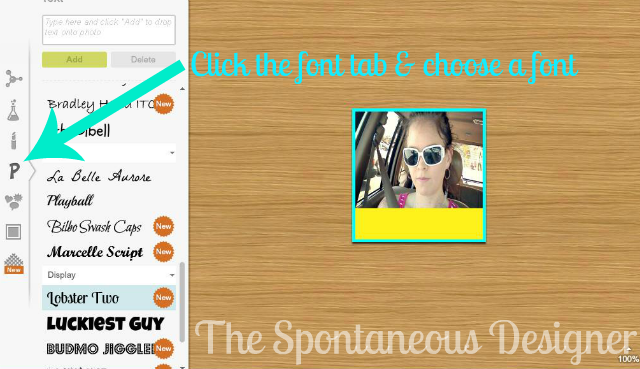
Seven. Click the font tab. Choose a font & a color.
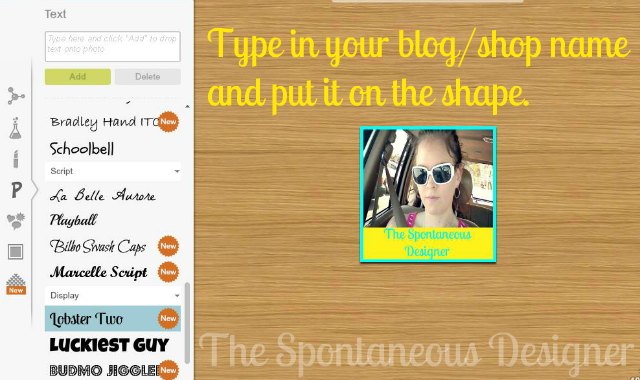
Eight. Type in the name you want on it and place it on your button. {if you are using a shape place it in the shape}
Nine. Go back to the top tab. Click resize. Resize it back to 200x200 {the border made it bigger} and save your button.
TA-DA!! Now you have a blog button!
See really isn't as bad as it seems.
The more you play around with it - the better at it you will get!
Don't run away because there is nine steps.
I promise it is very easy.
One. Go to picmonkey.com and upload a photo or color of your choice background.
Two. Resize your image to 200x200. {Make sure keep proportions is unchecked.}
Three. Click on frames. Simple Edge. Push thickness on the outer color all the way to the left..
Four. Select the box next to the inner color and choose a color.
Five. Go to shapes. Geometric shapes. Select whatever shape you like - I used the first one. {You do not have to do this step. I just like doing it when I use a picture as a background.}
Six. Choose a color for your shape and place it on your button. Resize it as you need.
Seven. Click the font tab. Choose a font & a color.
Eight. Type in the name you want on it and place it on your button. {if you are using a shape place it in the shape}
Nine. Go back to the top tab. Click resize. Resize it back to 200x200 {the border made it bigger} and save your button.
TA-DA!! Now you have a blog button!
See really isn't as bad as it seems.
The more you play around with it - the better at it you will get!

Friday, June 8, 2012
Blogging 101 - How to submit a guest post in HTML form
Today I am going to show you how to submit a guest post to someone in HTML form.
It came to my attention that not everyone knows how to do this.
I request posts in HTML form because it is way easier that way & I know alot
of other bloggers do too.
So here is the quick and easy steps on how to do that! :)
One. Write your post as your normally would.
Two. Click on edit HTML After you have your post typed up click on the edit HTML tab found right next to compose.
You will see all of this scary code stuff that is in your post. Don't be alarmed - it's normal. :)
Four. Copy Text
Five. Compose message Go to your e-mail and compose a message.
Six. Paste Paste everything you just copied to the e-mail and put start HTML at the beginning. It helps the person you are sending it to know where it starts.
and to know where it ends. :)
& there you have. That is how you submit a guest post or any post for that matter in HTML form!
Happy Friday!
It came to my attention that not everyone knows how to do this.
I request posts in HTML form because it is way easier that way & I know alot
of other bloggers do too.
So here is the quick and easy steps on how to do that! :)
One. Write your post as your normally would.
Two. Click on edit HTML After you have your post typed up click on the edit HTML tab found right next to compose.
You will see all of this scary code stuff that is in your post. Don't be alarmed - it's normal. :)
Four. Copy Text
Five. Compose message Go to your e-mail and compose a message.
Six. Paste Paste everything you just copied to the e-mail and put start HTML at the beginning. It helps the person you are sending it to know where it starts.
and to know where it ends. :)
& there you have. That is how you submit a guest post or any post for that matter in HTML form!
Happy Friday!
Thursday, May 31, 2012
Indie Biz 101 - Create a shop header
So you are getting ready to launch your shop? Or maybe you already have but your not sure how to make a banner for your shop? I'm going to show you a very simple way to do this.
Step One Go to picmonkey.com
Step two To get a white background or different color background go to paint and save the background. Then.
Step three. Resize the background. 980 is the width for storenvy. 760x100 is the size for an Etsy header.
Step four Choose whatever graphics you like and you can rotate them any way you like.
Step Five - I chose a triangle and flipped it upside down. To have this image go all the way across the top. Duplicate the overlay.
Step six - Choose your colors.
Step seven - Choose the font(s) you want to use and type in your shop name and click add. Change the color to your liking.
Step eight - Crop out whatever white you don't need to use.
Step nine - Save your file.
That's it! Simple & easy! Next time I'll be showing you how to put graphics in your header for all you DIYers. :)
Step One Go to picmonkey.com
Step two To get a white background or different color background go to paint and save the background. Then.
Step three. Resize the background. 980 is the width for storenvy. 760x100 is the size for an Etsy header.
Step four Choose whatever graphics you like and you can rotate them any way you like.
Step Five - I chose a triangle and flipped it upside down. To have this image go all the way across the top. Duplicate the overlay.
Step six - Choose your colors.
Step seven - Choose the font(s) you want to use and type in your shop name and click add. Change the color to your liking.
Step eight - Crop out whatever white you don't need to use.
Step nine - Save your file.
That's it! Simple & easy! Next time I'll be showing you how to put graphics in your header for all you DIYers. :)
Subscribe to:
Comments (Atom)